
Website Analytics for Business: How to Read Data and Make Decisions
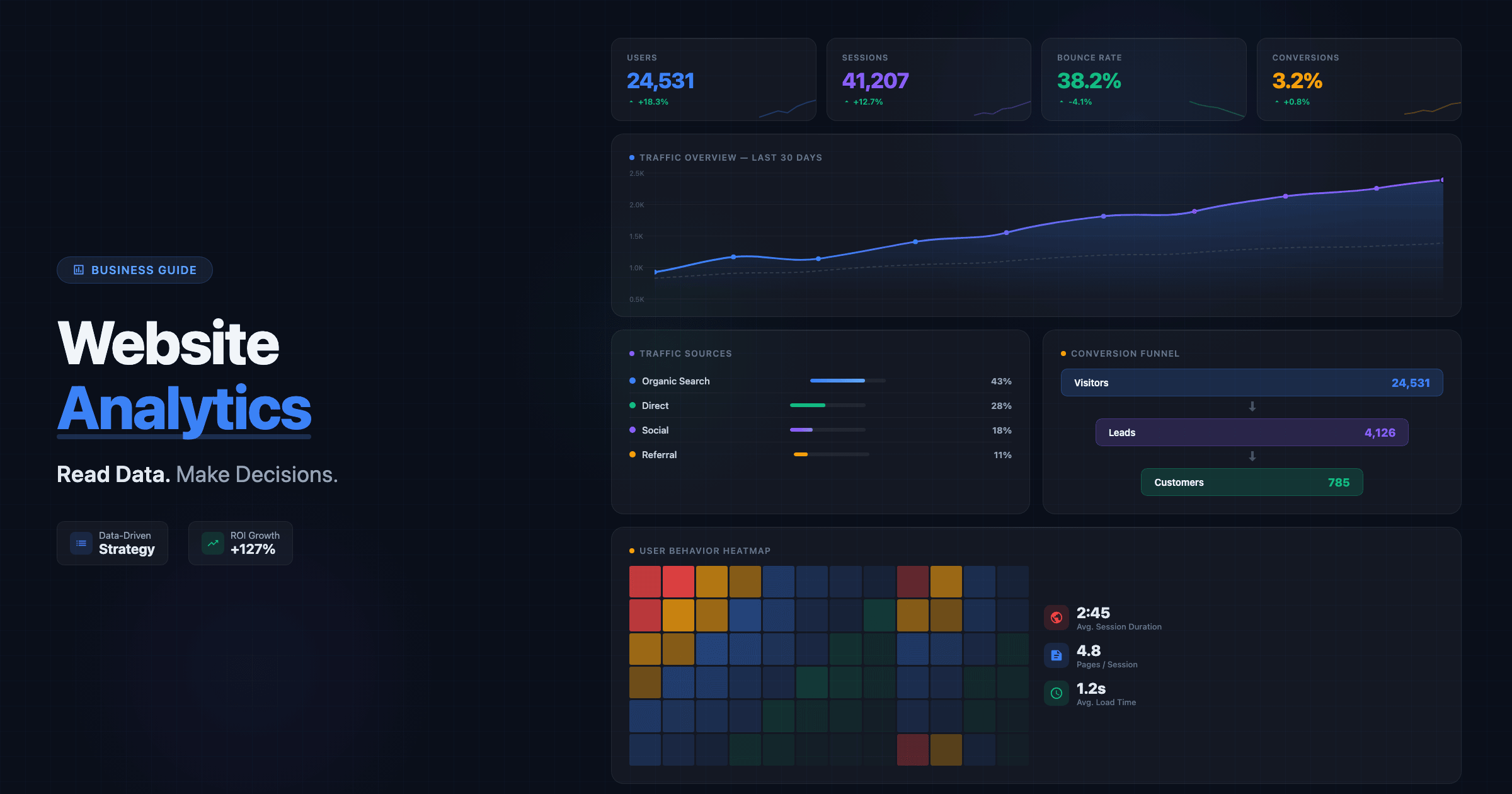
Your website generates data every second — who visits, where they come from, what they click, where they leave. But most business owners either ignore this data entirely or drown in dashboards they don’t understand. The result is the same: decisions based on gut feeling instead of evidence.
Website analytics isn’t about tracking every metric that exists. It’s about knowing which 5-10 numbers actually matter for your business and understanding what they’re telling you. A restaurant owner doesn’t need to understand attribution modeling — but they do need to know whether their website is driving reservations and which marketing channel delivers the most customers.
This guide strips analytics down to what business owners actually need. We’ll cover the three essential tools (GA4, Google Search Console, and Microsoft Clarity), the metrics that matter, how to read them, and — most importantly — what actions to take based on what you see.
The Three Tools You Actually Need
You don’t need ten analytics platforms. These three free tools cover everything a business website needs:
Google Analytics 4 (GA4) — your primary analytics tool. Tracks who visits your site, where they come from, what they do, and whether they convert. It replaced Universal Analytics in 2023, and while the interface takes getting used to, GA4 is more powerful for understanding user journeys across devices.
Google Search Console — shows how your site appears in Google search. Which queries bring traffic, which pages rank, how often your site appears in results, and any technical issues Google finds. This is your SEO dashboard. If your site isn’t set up in Search Console, you’re flying blind on organic search — and for many businesses, that’s the primary traffic source.
Microsoft Clarity — free heatmaps and session recordings. While GA4 tells you what happened (30% bounce rate on the pricing page), Clarity shows you why (users scroll past the pricing table without reading it, or rage-click a non-clickable element). Install all three. They complement each other and together provide a complete picture.
GA4: The Metrics That Matter
GA4 has hundreds of metrics and dozens of reports. Most of them are irrelevant for a typical business website. Here are the ones that deserve your attention:
Users and Sessions
Users = unique people who visited your site. Sessions = total visits (one user can have multiple sessions). Track both monthly and look for trends rather than absolute numbers. A site getting 500 users/month isn’t inherently worse than one getting 50,000 — what matters is whether it’s growing, whether those users match your target audience, and whether they convert.
What to do: If users are flat or declining, your acquisition channels need attention (SEO, ads, social). If users grow but sessions per user decline, people aren’t returning — a content or UX problem.
Traffic Sources
In GA4, go to Acquisition → Traffic acquisition to see where your visitors come from:
- Organic Search — visitors from Google/Bing. Your SEO performance. Usually the highest-quality traffic.
- Direct — people typing your URL or using bookmarks. Indicates brand awareness.
- Referral — clicks from other websites. Check which sites send traffic and whether that traffic converts.
- Organic Social — traffic from social media posts (not ads). Measures your social media strategy effectiveness.
- Paid Search — Google Ads clicks. Track alongside your ad spend to calculate true ROI.
- Email — traffic from email campaigns. Requires proper UTM tagging to track accurately.
What to do: A healthy site doesn’t depend on one source. If 90% of your traffic is organic, a Google algorithm update could devastate your business overnight. Diversify. Also compare conversion rates across sources — you might discover that social traffic has 5x lower conversion than organic, signaling that your social audience doesn’t match your buyers.
Engagement Rate and Bounce Rate
GA4 introduced engagement rate as the primary metric, replacing the old bounce rate concept. An engaged session is one that lasted at least 10 seconds, had at least 2 page views, or had a conversion event. Bounce rate is now the inverse: the percentage of sessions that were not engaged.
Benchmarks vary by page type: blog posts typically see 40-60% engagement rate, landing pages 50-70%, and e-commerce product pages 55-75%. If your pages fall significantly below these ranges, there’s a mismatch between what users expect and what they find — often one of those hidden website mistakes.
What to do: Don’t look at site-wide averages — they’re meaningless. Check engagement rate per page. Find your worst performers and investigate: is the content relevant? Does the page load fast? Does it match the search intent that brought users there?
Conversions (Key Events)
In GA4, conversions are called “key events.” These are the actions that matter for your business: form submissions, phone calls, purchases, file downloads, button clicks. If you haven’t set up key events yet, everything else in analytics is just noise — you can see traffic but can’t tell if it’s generating business results.
How to set up: For most business websites, you need to track: contact form submissions (create an event that fires when users reach a thank-you page or when a form submit event occurs), phone clicks (track tel: link clicks as events), and any other meaningful actions. Use Google Tag Manager for more complex setups.
What to do: Calculate your conversion rate (conversions ÷ sessions × 100). If it’s below 1-2% for a service business or below 1% for lead generation, your site has a conversion problem — likely a UX issue, weak calls to action, or content that doesn’t build enough trust. Our guide on high-conversion elements covers the fundamentals.
Google Search Console: Your SEO Dashboard
Search Console shows how Google sees your site. The Performance report is where you’ll spend most of your time.
Key Metrics
- Impressions — how often your site appeared in search results. Not clicks — just appearances. Growing impressions mean Google is showing your content for more queries.
- Clicks — how many times users clicked through to your site from search results.
- Click-Through Rate (CTR) — clicks ÷ impressions. Average CTR for position 1 is ~30%, position 2 is ~15%, position 3 is ~10%. If your CTR is low for a high-ranking page, your title tag and meta description need work.
- Average Position — your average ranking for a given query. Below 10 = page 2+ of Google, which gets virtually zero traffic.
How to Use Search Console Strategically
Find quick wins: Filter by position 5-15. These are pages ranking on the bottom of page 1 or top of page 2 — close to driving real traffic. Improve these pages (better content, stronger internal links, optimized titles) and they can jump to top positions with relatively little effort.
Discover content opportunities: Look at queries where you get impressions but few clicks. These are topics users search for where Google considers your site relevant but your content isn’t compelling enough to click. Create or improve content for these queries.
Monitor technical health: The Pages report (Indexing → Pages) shows which URLs are indexed and which have problems. Check it monthly. If indexed pages are decreasing, something is wrong — crawl errors, robots.txt issues, or Google quality filtering. Our SEO audit checklist walks you through the diagnostic process.
Microsoft Clarity: See What Users Actually Do
Numbers tell you what happened. Clarity shows you why. It offers two powerful features for free:
Heatmaps show where users click, how far they scroll, and where their attention concentrates. Common discoveries: users click on elements that aren’t links (add links or make them clickable), nobody scrolls past the third section (move your CTA higher), or users completely ignore your sidebar (reconsider the layout).
Session recordings let you watch individual user sessions in real time (anonymized). This is the closest thing to sitting next to a user while they browse your site. You’ll quickly spot confusing navigation, broken elements, or forms that frustrate users.
Dead clicks and rage clicks — Clarity automatically flags clicks on non-interactive elements (dead clicks) and rapid repeated clicks on the same element (rage clicks). These are UX problems you’d never find in GA4 alone.
What to do: Watch 10-20 session recordings per month, focusing on sessions where users left without converting. Look for patterns: where do they hesitate? What do they click that doesn’t respond? Where do they abandon? These observations directly inform your next website improvements.
Building a Monthly Analytics Routine
Analytics only creates value when you look at it regularly and act on what you find. Here’s a practical monthly routine that takes 30-60 minutes:
- GA4: Check traffic trend (5 min) — compare this month vs. last month and vs. same month last year. Is traffic growing? Which sources are driving growth or decline?
- GA4: Review conversions (5 min) — how many key events this month? Calculate conversion rate. Compare to previous month. If it dropped, investigate which pages or sources declined.
- GA4: Top pages report (5 min) — which pages get the most traffic? Which have the worst engagement rate? Flag the 3 worst-performing high-traffic pages for improvement.
- Search Console: Performance (10 min) — any significant changes in impressions or clicks? New queries appearing? Quick-win keywords (position 5-15) to target?
- Search Console: Indexing (5 min) — any new indexing errors? Pages dropping out of the index? Technical issues flagged?
- Clarity: Watch recordings (15-20 min) — watch 10 sessions from users who bounced from key pages. Note UX issues and patterns.
- Action list (5 min) — write 3-5 specific actions based on what you found. Assign deadlines. Next month, check if those actions improved the metrics.
That’s it. 30-60 minutes per month, consistently, is more valuable than a 10-hour deep dive once a year. The key is consistency and acting on what you find.
Common Mistakes in Website Analytics
- Tracking vanity metrics — total pageviews or session duration don’t tell you if your site generates business. Focus on conversions and conversion rate.
- No conversion tracking — without key events set up, you’re measuring activity, not results. This is the single most common analytics mistake.
- Comparing yourself to benchmarks — industry averages are misleading. Your historical data is the only relevant comparison. Are you improving month over month?
- Analysis paralysis — looking at 50 metrics and doing nothing. Pick 5 metrics, check them monthly, and act on what you see.
- Not filtering internal traffic — if your team visits the site regularly, their sessions inflate your numbers. Set up an IP filter in GA4 or use Clarity’s internal traffic detection.
- Ignoring mobile vs. desktop — always segment by device. A page might perform great on desktop but terribly on mobile, and you’d never know from aggregate data.
When Analytics Says It’s Time for Changes
Data doesn’t just tell you how things are — it tells you when it’s time to act. Here are clear signals from analytics and what they mean:
- Traffic growing but conversions flat → your site attracts visitors but doesn’t convert them. CTA, trust signals, or landing page structure need work.
- High bounce rate on specific pages → content doesn’t match search intent, or the page has UX problems. Use Clarity recordings to diagnose.
- Mobile engagement rate 50%+ lower than desktop → your mobile experience is broken. This is more than an analytics issue — it affects your SEO rankings directly.
- Organic traffic declining steadily → possible algorithm impact, technical SEO issues, or competitors outranking you. Run a full SEO audit.
- One traffic source dominates (80%+) → dangerous dependency. Diversify with other channels before that source changes.
- Average position dropping for key terms → content freshness issue or competitor improvement. Update and strengthen the affected pages.
If multiple signals point to the same conclusion — especially declining engagement, poor mobile experience, and dropping conversions — it may be time for a site redesign rather than incremental fixes.
How EffectLab Approaches Analytics
Every website we build comes with analytics infrastructure from day one. GA4 with properly configured key events, Search Console integration, and Clarity installed — so from the moment your site launches, you’re collecting actionable data, not just traffic numbers.
We also set up custom dashboards that surface only the metrics your business cares about — no information overload, just clear signals. And for ongoing clients, monthly analytics reviews are part of our service: we review the data, identify opportunities, and recommend specific actions.
Want to stop guessing and start measuring? Get in touch — we’ll audit your current analytics setup and show you exactly what your website data is trying to tell you.
Conclusion
Website analytics isn’t a technical exercise — it’s a business tool. The companies that grow online are the ones that check their data regularly, understand what the numbers mean, and take action based on evidence rather than guesswork.
You don’t need to become a data analyst. You need to know 5-10 metrics, check them monthly, and have a clear process for turning insights into actions. Install the three tools, follow the monthly routine, and within a quarter you’ll be making better decisions about your website than 90% of your competitors.
Start today. Open GA4, find your conversion rate, and ask yourself: is this number good enough? If you don’t know — that’s exactly why analytics matters.